Part 1 - Basic pyBIS introduction
In openBIS, there are two main ways in which users can define and store metadata:
- Manual annotation of metadata via the Graphical User Interface (GUI).
- Automated data ingestion via an Application Programming Interface (API).
In this part, you will learn the basics of the openBIS API in Python, also called pyBIS.
Tip
We recommend that readers launch a Jupyter Notebook in a Python environment with pyBIS installed, and run the commands shown throughout the following sections.
Initial setup: connecting to openBIS
The first step when using pyBIS is to connect to the specific instance where you will work.
We start by defining some variables:
Warning
You must not openly distribute the URL, USERNAME, and PASSWORD. In case you are working in open repositories (e.g., GitHub), make sure that these values are removed or anonymized before pushing content. There are other safer approaches (e.g., secret environments) which can help you manage your username and passwords securely.
You can log in openbis with:
After a few seconds, o will connect to the openBIS instance specified in URL using your credentials.
You can check whether the session is active:
Or check the openBIS version:
You can also define a personal access token (PAT):
And use it for authentication instead of the username and password:
Exploring available openBIS folders and entities
In openBIS, data is organized following the structure: Space > Projects > Collections (optional) > Objects. Spaces and Projects are folder-like structures used to organize research workflows. These workflows are described by Objects and by the parent-child relationships defined between them. Collections provide an optional way to group multiple objects under a common category.
In addition, Datasets (i.e., entities containing raw data) can be attached to Objects or Collections to connect the raw data with the metadata describing it.
In this sub-section, you will learn how to use pyBIS to explore the available Spaces, Projects, Collections, and Objects in the openBIS instance o. This knowledge will be useful later when building the data model with Objects and their parent-child relationships (see Part 2 - Advanced pyBIS features).
Spaces and Projects
You can get all the available Spaces in an openBIS instance by doing:
To work within a specific Space, you can use its code:
You can then retrieve a specific project from that space:
Similarly to Spaces, you can also list all projects availableS in an instance:
The variable my_project represrnts the Project container data can be stored.
Hint
Plural methods (get_spaces, get_projects) are called on the Openbis instance to retrieve the available folders in that instance. Singular methods (get_space, get_project) are then used to retrieve a specific folder from the returned results.
Collections
You can list all Collections in an instance, Space, or Project by respectively doing:
You can retrieve a specific Collection using its full path:
If you do not know the path, you can inspect it either by calling get_collections() or by checking the Collection metadata in the openBIS web interface:
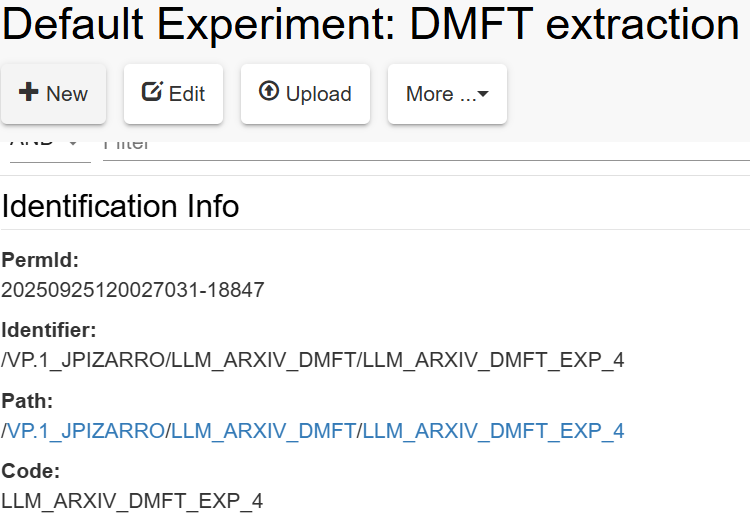
You can also retrieve a specific Collection using its permID:
Objects and Datasets
Objects are accessed similarly to Collections, with the difference that Objects may also be grouped inside a Collection:
You can also retrieve an Object using its path or permID:
my_object = o.get_object("/<SPACE-CODE>/<PROJECT-CODE>/<COLLECTION-CODE>/<OBJECT-CODE>")
# Alternative 1 (if the Object is directly under a Project):
# my_object = o.get_object("/<SPACE-CODE>/<PROJECT-CODE>/<OBJECT-CODE>")
# Alternative 2:
# my_object = o.get_object(permID)
Datasets follow the same pattern, using get_datasets() and get_dataset(). Datasets can be attached to Collections or Objects. You can download a specific dataset (e.g., defined by a permID) using:
You can also specify the destination directory: